
A construction pay application should help keep cash flow moving, not create another administrative burden. Yet the process of completing pay apps can become repetitive when teams re-enter project details, update long schedules of values, calculate retainage, and reconcile prior billings by hand.
The AIA Contract Documents (ACD) platform, Catina, brings the two forms into one connected workflow. You can configure the documents together, reuse prior payment application data, update multiple line items, review automatic calculations, and move the package through review and finalization from the same workspace. The result is a clearer billing process with less duplicate entry and a stronger record of each application. Build smart by setting up the first pay app carefully, then reuse that work throughout the project.
Watch the Tutorial: How To Complete the G702 Pay App
What G702 and G703 Do
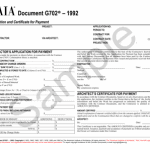
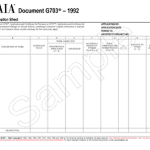
G702® – Application and Certificate for Payment is the contractor’s application for payment and the architect’s certificate for payment. It summarizes the contract sum, approved change orders, completed and stored work, retainage, previous payments, and the current payment requested. G703® – Continuation Sheet organizes the schedule of values and line-item detail supporting those totals.
The forms are designed to work together. Complete and verify the line-item information in G703, then confirm that the summary values carried into G702 match the current billing period. Catina combines this work so the cover sheet and continuation sheet remain connected as you edit.
G702 and G703 at a Glance
Form | Primary purpose | Key information |
Request and certify the progress payment | Contract sum, changes, completed and stored work, retainage, prior payments, current amount due | |
Support G702 with schedule-of-values detail | Line items, scheduled values, work completed, stored materials, balance to finish, retainage |
Step-by-Step: How To Complete AIA G702 and G703
1. Configure the Payment Application
Open the standard template screen from a project, the Documents tab, or the New button. Select G702-1992, choose Configure, and enter a clear document name, project, period date, and project team information when applicable. Starting inside the correct project helps Catina reuse details that already exist instead of asking you to rebuild the same record.
Catina includes G703 as the related continuation sheet by default. Keep it included when the pay application needs schedule-of-values detail, or adjust the setting if your project requires a different approach. Before creating the documents, review the project selection, billing period, team, and related-document choice. These setup decisions control what data is available in the editor.
2. Choose the Right Starting Point
For the first payment application, create the G702 and G703 package and establish the schedule of values carefully. Confirm item numbers, descriptions, scheduled values, and any approved changes. A clean first application gives every later billing period a reliable starting point.
For a subsequent billing, select Start from previous pay app during configuration and choose the most recent payment application. Catina carries prior project and line-item data into the new billing package so you can focus on what changed this period. Always verify the imported application number, period date, prior payments, change orders, stored materials, and current work before continuing. Reuse speeds up the workflow, but it does not replace a billing-period review.
3. Build and Update the G703 Line Items
Use the line-item editor to update the schedule of values for the current period. Enter or confirm the description of work, scheduled value, work completed from previous applications, work completed this period, materials presently stored, and the balance to finish. Catina uses built-in logic and calculations to update related fields as you work.
The toolbar supports adding multiple rows at once when the schedule needs to expand. For larger schedules or offline collaboration, use Bulk Actions to export the line-item data to Excel, make supported edits, and import the file back into Catina. Review column headers and imported values before relying on the totals, especially when data originated in a previous platform or workbook.
- Add rows in batches: Create the space you need before entering or importing line items.
- Use Excel for larger updates: Export the Catina file, edit the supported fields, and import it into the same project and document type.
- Check imported data: Verify descriptions, values, percentages, and column alignment after every import.
4. Apply Retainage Across Multiple Rows
When the same retainage rate applies to several G703 line items, use the checkbox column to select the rows. Select Set Retainage, enter the applicable percentage, and apply it to the selection. The tool updates the chosen rows together, eliminating repetitive row-by-row edits and helping the schedule stay consistent.
Retainage requirements come from the contract documents and may also be affected by applicable law. Confirm whether the project uses a fixed or variable approach, which work or materials are subject to retainage, and whether any reduction has been approved. If you import an existing schedule, review the retainage values after import before moving forward.
5. Review the G702 Summary and Editor Calculations
Once the G703 line items are current, review the G702 cover sheet. Confirm the original contract sum, net change by change orders, contract sum to date, completed and stored work, retainage, previous certificates for payment, and current payment due. Catina updates related fill points as you enter retainage and change order information, but the project team remains responsible for confirming that the source data and billing logic are correct.
Editable areas appear in blue in the document editor. Use the context menu for additional editing options and the toolbar to update document properties, preview the draft, or open contextual resources. Changes are preserved in markup, which gives reviewers a visible record of document edits. Before review, reconcile G702 totals to G703 and to the previous approved application.
6. Use a Fast Pre-Review Check
Review area | Confirm before moving forward |
Project details | Owner, contractor, architect, project, application number, and period date are correct. |
Contract value | The original sum and approved change orders reconcile with the current contract sum. |
Line items | Current work, stored materials, balances, and percentages match the supporting records. |
Retainage | Rates and amounts follow the contract and any approved reductions. |
Prior billing | Previous payments and current amount due reconcile to the last approved application. |
Move the Document Through Review and Finalization
The status bar shows where the document sits in its lifecycle and lets you move between available stages. When the pay application is ready, preview the draft, confirm required fields and signer information, and move to Review. Configure electronic or ink signatures as appropriate, select the required final markup format, and finalize the document.
If a reviewer identifies a problem before execution is complete, return to the editable stage when the platform and signature status allow it, correct the source information, and regenerate the document. Do not solve a data problem only in a detached PDF because the next pay application should carry forward the corrected Catina record. For detailed signature and markup guidance, see Finalizing a Document in Catina.
Make Every Billing Period Faster
The largest efficiency gain appears after the first accurate payment application. During the next billing period, create a new G702 package, select Start from previous pay app, and choose the latest application. Update only the current-period work, stored materials, approved changes, and retainage conditions, then perform the same reconciliation before review.
This repeatable process reduces re-entry while keeping each billing package connected to the prior period. It also gives the architect and owner a consistent format to review, which can make questions easier to locate and resolve. The goal is not simply faster data entry. It is a payment application that is complete, traceable, and ready for a confident review.
Common G702 Payment Application Mistakes
Here are some common mistakes to avoid when completing pay apps:
- Starting from an outdated prior application instead of the latest finalized version.
- Changing G702 totals without reconciling the supporting G703 line items.
- Applying one retainage rate to rows governed by different contract requirements.
- Importing Excel data without checking column alignment, percentages, and calculated totals.
- Leaving application dates, change orders, stored materials, or previous payments unreconciled.
- Finalizing before reviewing the draft, markup format, and signer information.
Keep Construction Billing Moving With Catina
A reliable G702 payment application starts with accurate project data and a complete G703 schedule of values. Catina makes that work easier to repeat by connecting the forms, carrying forward prior data, supporting bulk line-item updates, and keeping review and finalization within a single workflow. Configure the first application carefully, verify every billing period, and let the platform handle the repeatable work.
Access Catina and the documents your team uses to manage payment applications, changes, and project administration. Explore how to build a more consistent payment workflow.
Frequently Asked Questions
G702 summarizes the contractor’s request for payment and the architect’s certification. G703 supports that request with the schedule-of-values and line-item detail.
Catina’s configuration workflow includes G703 as the related document by default. Review the setting and keep it selected when the payment application requires the continuation sheet.
Yes. Select Start from previous pay app during configuration and choose the latest applicable payment application, then verify every carried-forward value for the new period.
Yes. Select the applicable rows, choose Set Retainage, enter the percentage, and apply it. Confirm the contract permits the same rate for every selected row.
Yes. Catina supports Excel export and import through Bulk Actions. Use the Catina export or template, preserve the expected structure, and review the imported values before finalizing.
Catina uses built-in logic to update related fill points from the information entered in the payment application workflow. Review the calculations against the contract, G703, prior billing, and supporting records.