Training resource hub

The New Editor:

Everything You Need to Get Started

Watch the walkthrough, keep the guide open while you work, and go deeper on the features your team touches every day.

Training & support 1
Watch + Learn

On-Demand Training

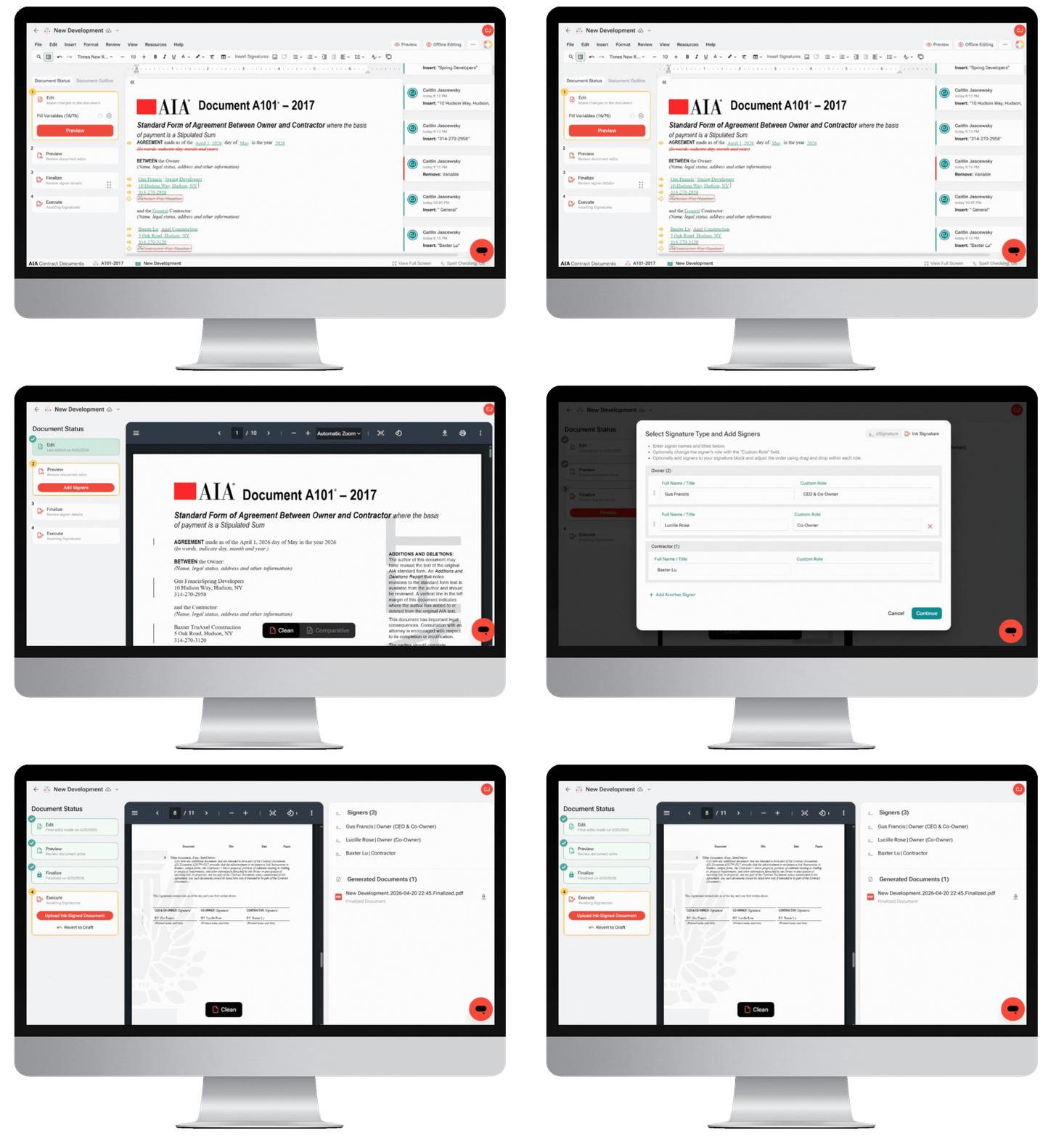
Join us for an introduction to Catina’s New Editor and learn how to confidently move your agreement through the complete document workflow. We’ll demonstrate how to:

Training & support 5

Navigate the editor’s newest enhancements

Training & support 5

Streamline review with tracked changes and comments

Training & support 5

Preview your document in flexible markup styles

Training & support 5

Configure signers and signature blocks

Training & support 5

Prepare for finalization and certify your document

Get Started

New Editor User Guide

Get the most out of Catina’s New Editor with step-by-step guidance for every stage of the agreement process. From editing and tracked changes to previews, finalization, and signatures, this guide helps you work more efficiently and move every document forward with ease.

1
Training & support 10

Edit

Make changes to the document

2
Training & support 11

Preview

Review document edits

3
Training & support 12

Finalize

Review signer details

4
Training & support 13

Execute

Awaiting signatures

BONUS
Training & support 14

Offline Editing + Custom Templates

Explore these advanced features

Need further guidance?

Our education team is here to help you have a smooth transition to the New Editor.

Frequently Asked Questions

Does project and project-team information populate across documents in the New Editor?

Yes. Set up the project information and project team before creating documents so Catina can automatically populate that information in each new document associated with the project, saving valuable time and ensuring consistency and accuracy. It’s important to note that changes made at the project level after a document is in progress will not carry forward.

How can I reuse the same standard edits each time I create a document?

Custom templates are ideal for this. Start with the applicable AIA contract document, add your firm’s frequently used edits, and save it as a custom template. The New Editor has an intuitive Custom Template Editor for this exact purpose. This creates a consistent starting point, reduces repetitive editing, and standardizes your firm’s processes. In the New Editor, you can maintain and re-publish your custom templates directly in Catina.
When multiple people work in the same document, how can I identify each person’s edits?

The Track Changes panel identifies each change with the user’s name and a timestamp. Users can also comment on individual changes to support collaboration. Color-coding is not unique to each user. Additions appear in green, and deletions appear in red for all users.

How does the New Editor address formatting issues from the legacy editor?

We rebuilt the New Editor’s underlying infrastructure to address formatting and spacing issues in the original editor. This was a top priority during the redesign. We also removed hidden spacing elements that caused inconsistencies, helping documents maintain consistent formatting.

Can I configure signers before finalizing?

Yes. You can configure signers in the editor by selecting the signature block or during Preview before finalization. Additionally, the New Editor allows you to add multiple signers for the same party, such as two architects. You can also add signers outside the core project parties, such as an attorney. Please note that signature blocks can only be edited online.

Can I return to editing after I finalize a document?

Yes. Select Revert to Draft to return to the editor. Reverting to draft cancels e-signatures that are still in progress. Once all signatures are complete, the document can no longer be reverted. Please note, reverting to draft after finalization is only available for Unlimited Subscribers.

What is the difference between Clean and Comparative markup?

Clean shows accepted edits and includes an Additions and Deletions report. Comparative shows inline markup throughout the document.

How do I remove the draft watermark from my document?

Finalizing the document removes the draft watermark. If editing online, simply click Finalize within the document editor status bar. If working offline, click the + New button, select Import Offline AIA Document, and then follow the steps to configure signatures and finalize the document within the online editor.

Can I edit a document offline in Microsoft Word, upload it, and finalize it in Catina?

Yes, as long as the document was originally exported from Catina or ACD5. You can edit supported drafts offline in Microsoft Word, import them into Catina, continue editing them online if needed, and finalize them in the online editor. The New Editor lets you move seamlessly between online and offline editing and finalization, regardless of where you start the document.